
Your Collection
Your collection is the first thing you see after logging in. Every bottle is one row, with its photo, tag, rating, location, type, price and ABV.
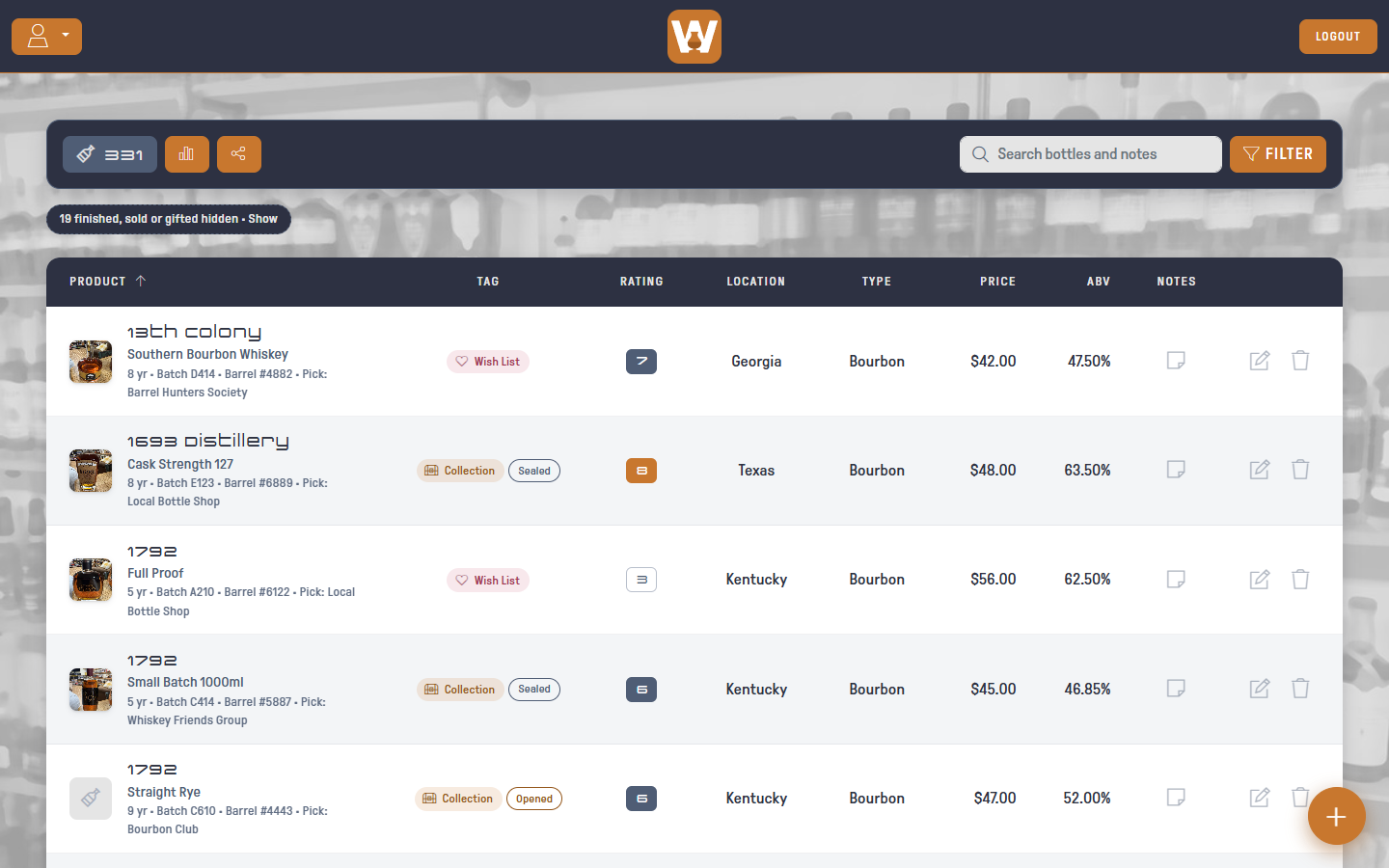
The bottle count in the toolbar shows how many bottles match your current search and filters.
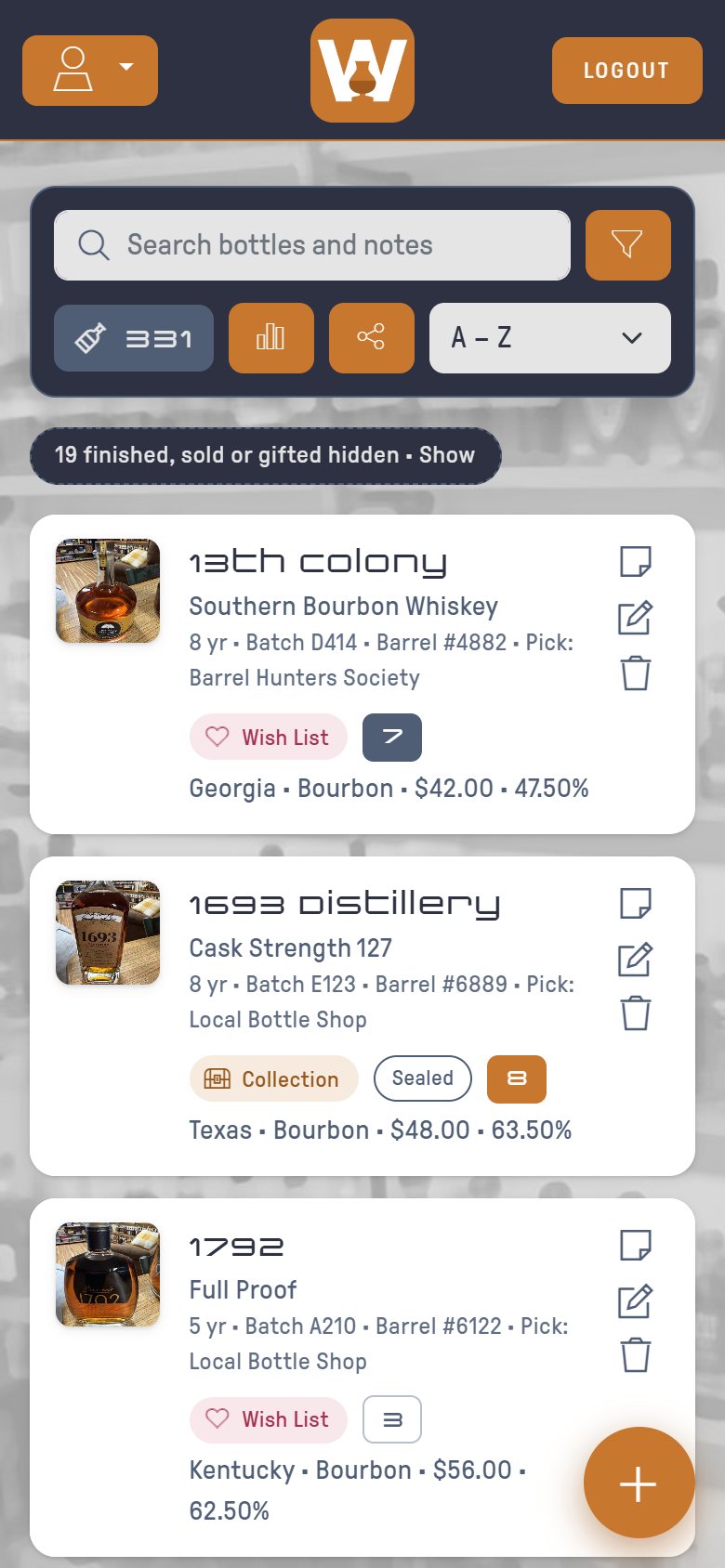
On Your Phone
On small screens each bottle becomes a card, with the tag, rating and details stacked under the name. Use the dropdown next to the toolbar buttons to change the sort order.
Adding a Bottle
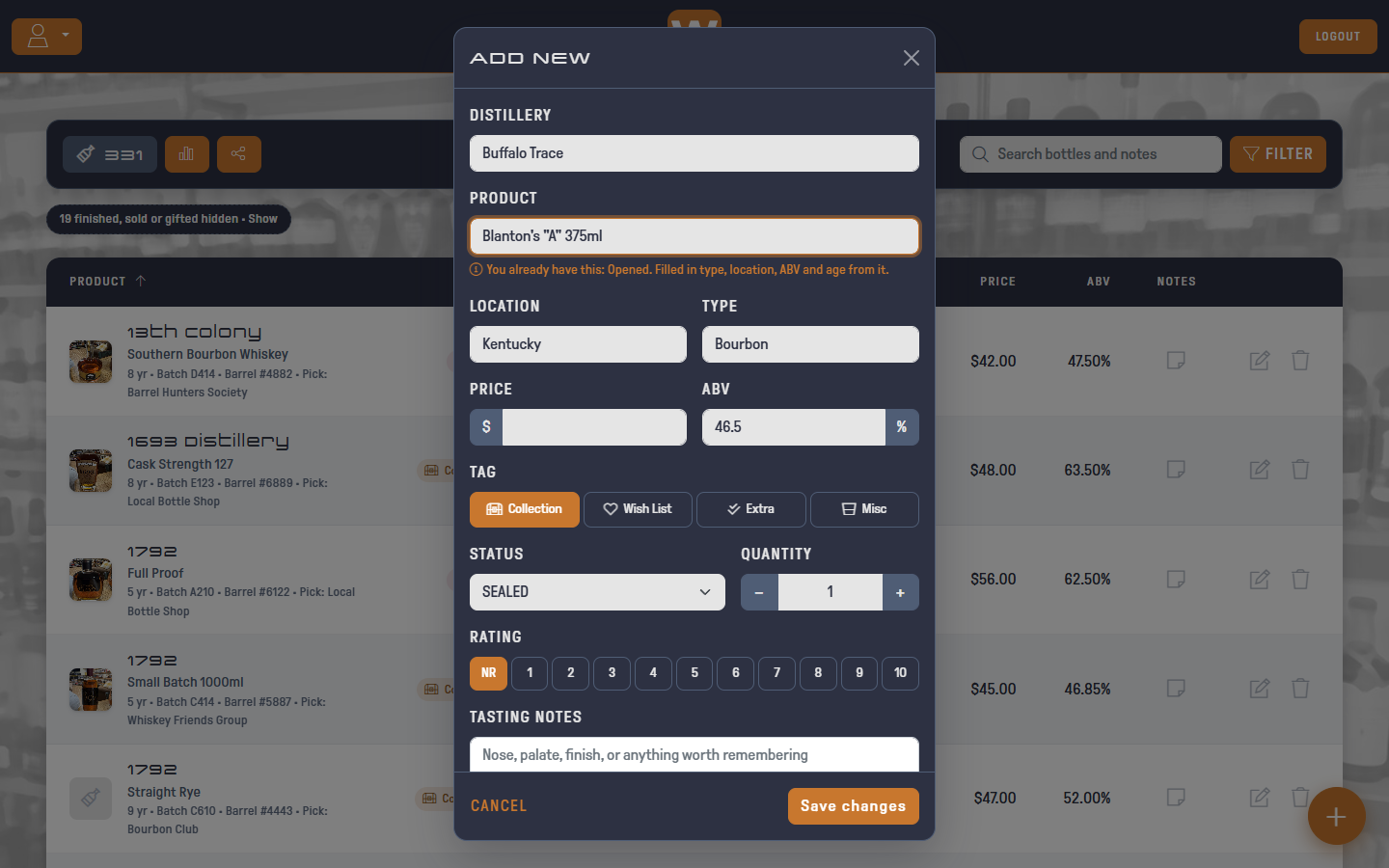
Click the orange + button in the bottom-right corner.
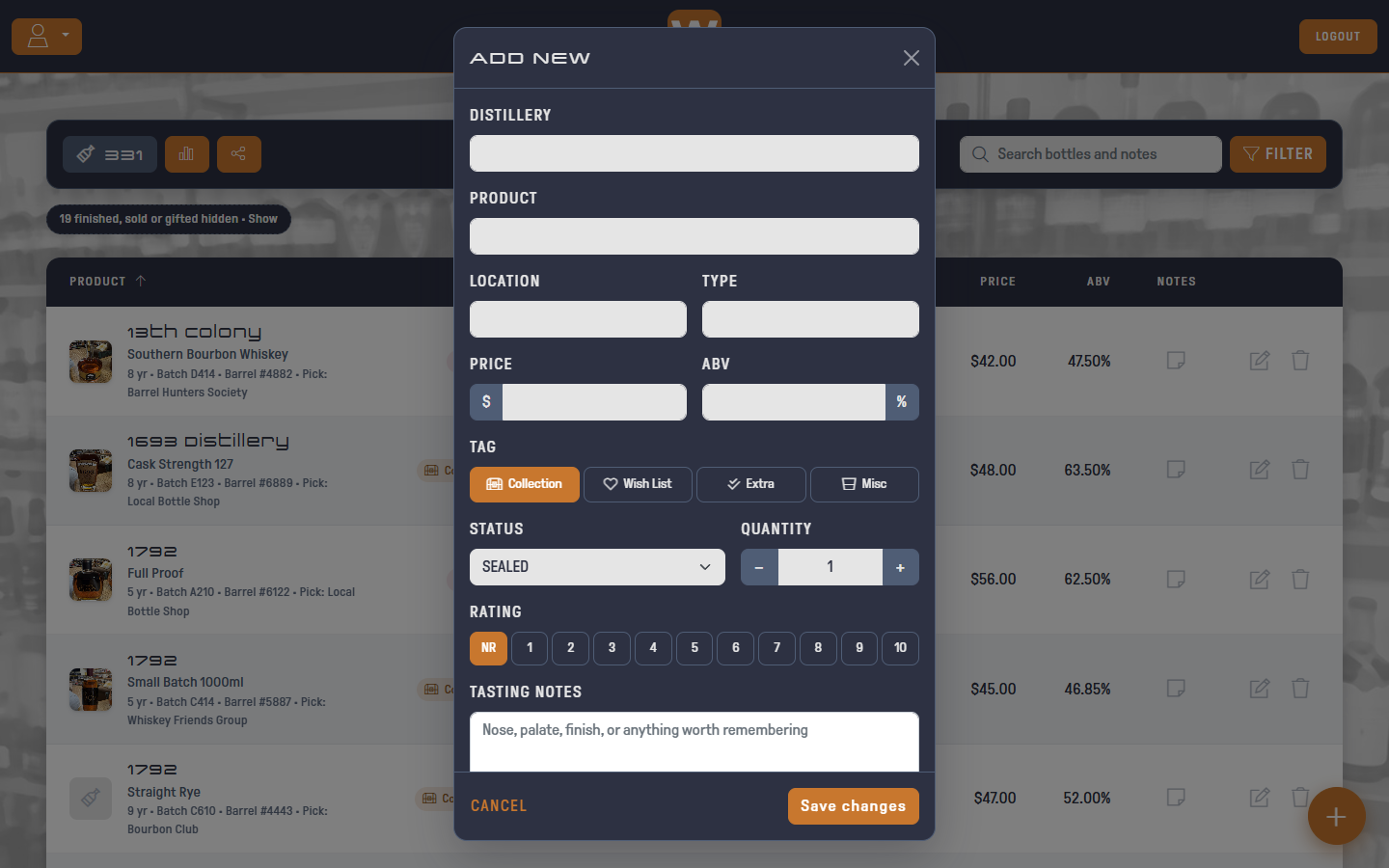
| Field | Notes |
|---|---|
| Distillery | Shown as the bottle's headline, e.g. Buffalo Trace |
| Product | The specific expression, e.g. Eagle Rare 10 Year |
| Location | Where it's from: a state, region or country |
| Type | Bourbon, Rye, Scotch, Single Malt and so on |
| Price | What you paid, in dollars |
| ABV | Alcohol by volume, as a percentage |
| Tag | Collection, Wish List, Extra or Misc (see below) |
| Status | Sealed, Opened, Finished, Sold / Traded or Gifted (see below) |
| Quantity | How many of this bottle you have. Use − and + or type a number |
| Rating | NR (not rated) or 1 to 10 |
| Tasting Notes | Nose, palate, finish, or anything else worth remembering |
| Image | One JPG or PNG photo of the bottle |
| Age | Years in the barrel. Decimals are fine, like 4.5. Leave it blank for no age statement (NAS) |
| Batch | The batch code on the label, e.g. C923 |
| Barrel | The barrel number, e.g. #4521 |
| Store Pick | The store or group that picked the barrel |
| Purchase Date | When you bought it |
| Bought At | The store or person you bought it from |
| Current Value | What one bottle would sell for today, if you want to track it |
The last seven fields are under More details. See More Details.
Click Save changes.
Suggestions
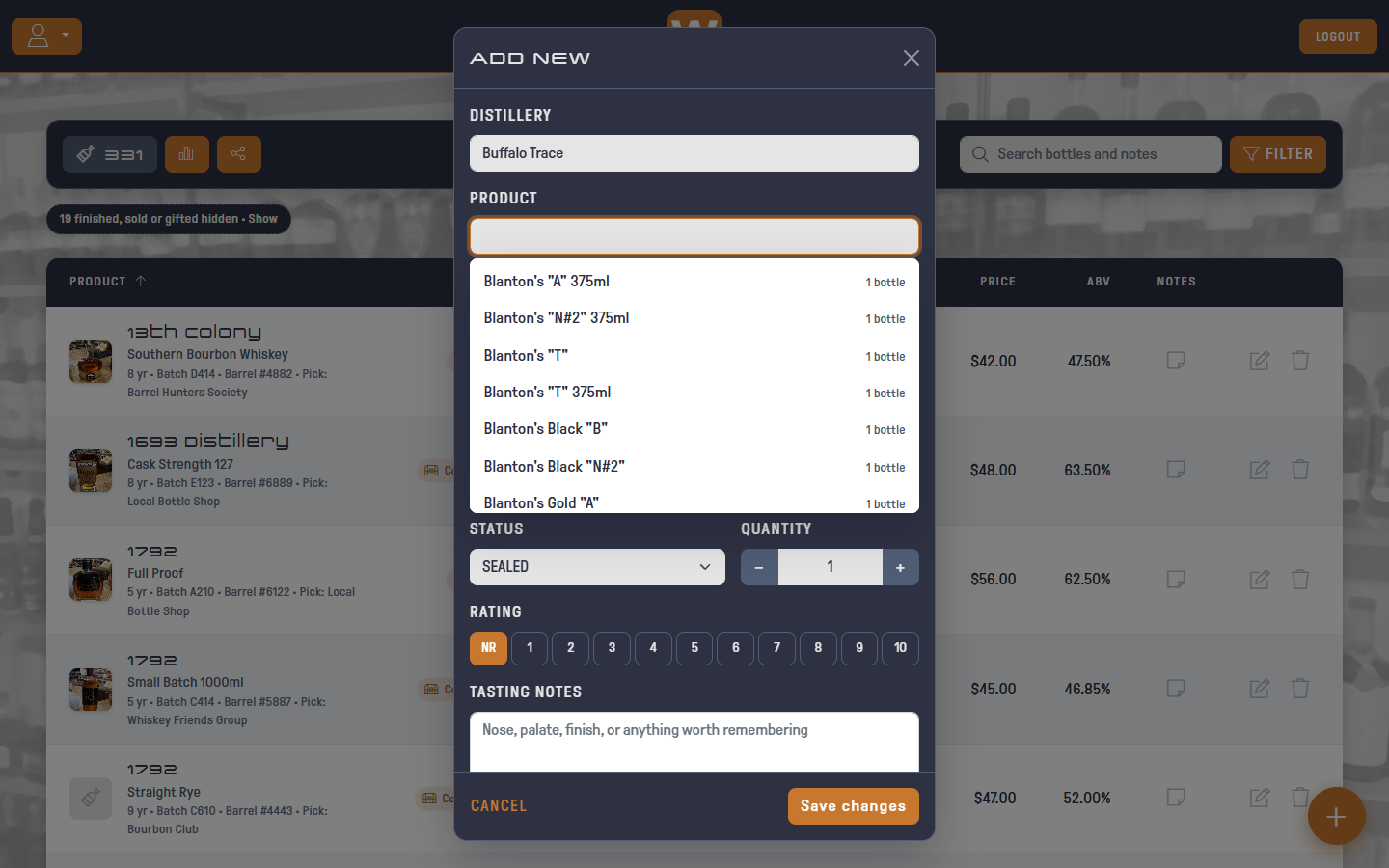
As you type a Distillery, Product, Location or Type, WhiskCur suggests names you've already used, most-used first. Use the arrow keys and Enter, or click or tap a suggestion.
- Once the distillery is one you have, click Product to see that distillery's bottles without typing.
- Type a product without a distillery and the suggestions show which distillery each is from. Picking one fills in the distillery too.
- Suggestions only come from your own bottles. Nothing from other accounts is shown.
If you add a bottle you already have, a note under Product says so, like You already have this: Opened ×2. WhiskCur also fills in any empty Type, Location, ABV and Age from that bottle. Anything you've already typed is left alone. Price isn't filled in, since you probably paid something different.
Basic accounts can hold up to 25 bottles. Upgrade to Pro for unlimited bottles.
Tags
Every bottle has one tag:
| Tag | Use it for |
|---|---|
| Collection | Bottles you own and are keeping |
| Wish List | Bottles you want to find |
| Extra | Spare bottles you'd trade or share |
| Misc | Anything else |
Wish List and Extra bottles can be shared with friends. See Sharing Lists.
Status and Quantity
A bottle's status tracks what's happened to it. Its tag says why you have it.
| Status | Use it for |
|---|---|
| Sealed | Unopened. New bottles start here |
| Opened | You've started it |
| Finished | Empty |
| Sold / Traded | It went to someone else in a sale or trade |
| Gifted | You gave it away |
The status shows as an outlined pill next to the tag. If you have more than one of a bottle, set its Quantity and the list shows ×2, ×3 and so on.
Finished, sold, traded and gifted bottles are hidden from your list by default, so it shows what's on your shelf. A chip under the toolbar says how many are hidden. Click it to show them, faded, or choose a status in the filter. Their ratings and notes are kept.
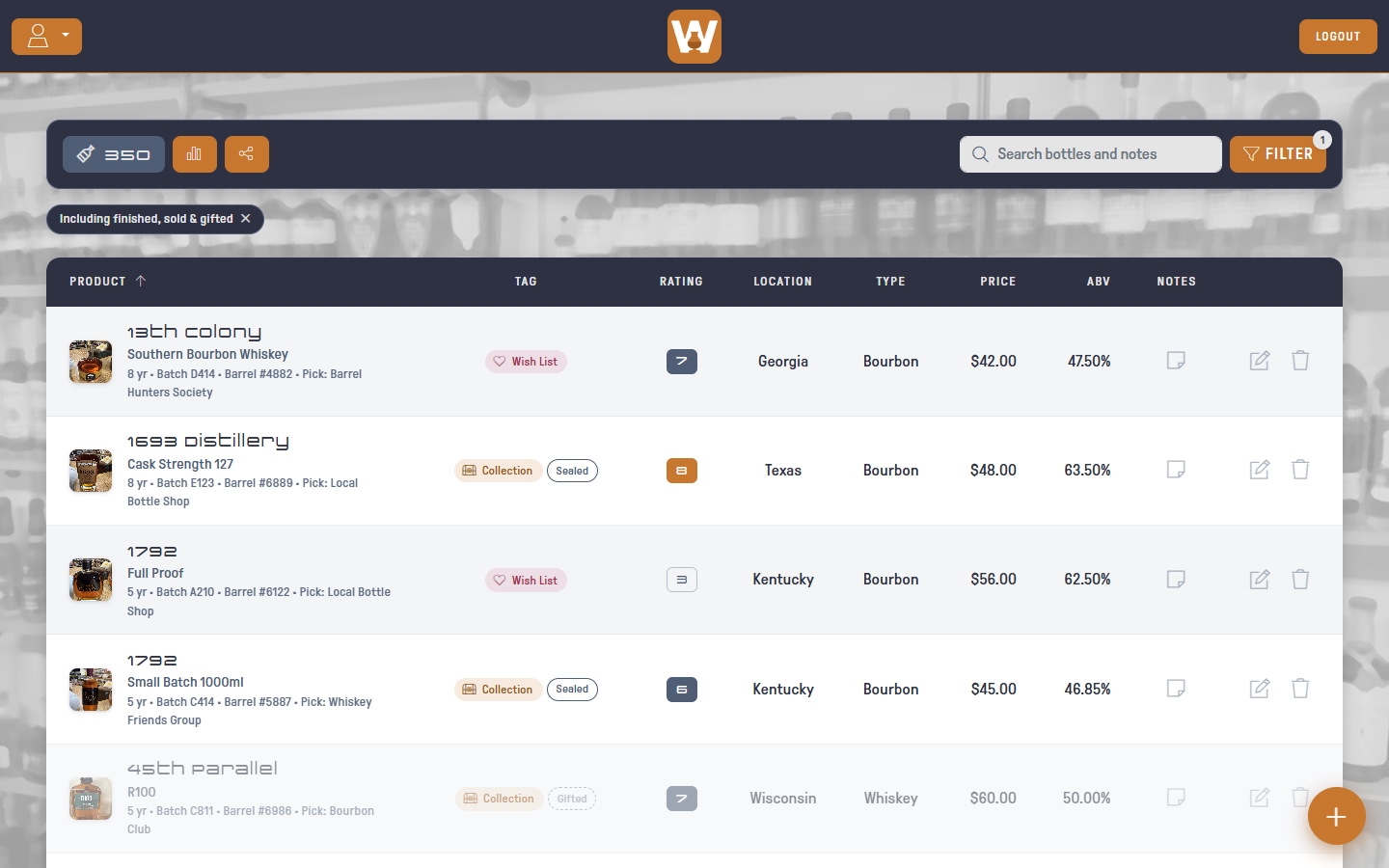
Wish List bottles don't have a status or quantity, since you don't own them yet.
Changing a bottle's status adds a dated entry to its history.
Ratings
Rate a bottle from 1 to 10, or leave it as NR (not rated). In the list, 8 to 10 shows in orange, 5 to 7 in slate, and 1 to 4 as an outline.
Tasting Notes
Write anything you want to remember about a bottle in Tasting Notes, up to 2,000 characters.
A bottle with notes shows a note button in the Notes column. On a phone, it sits above the edit and trash buttons. Click it to read the notes, then click EDIT to change them.
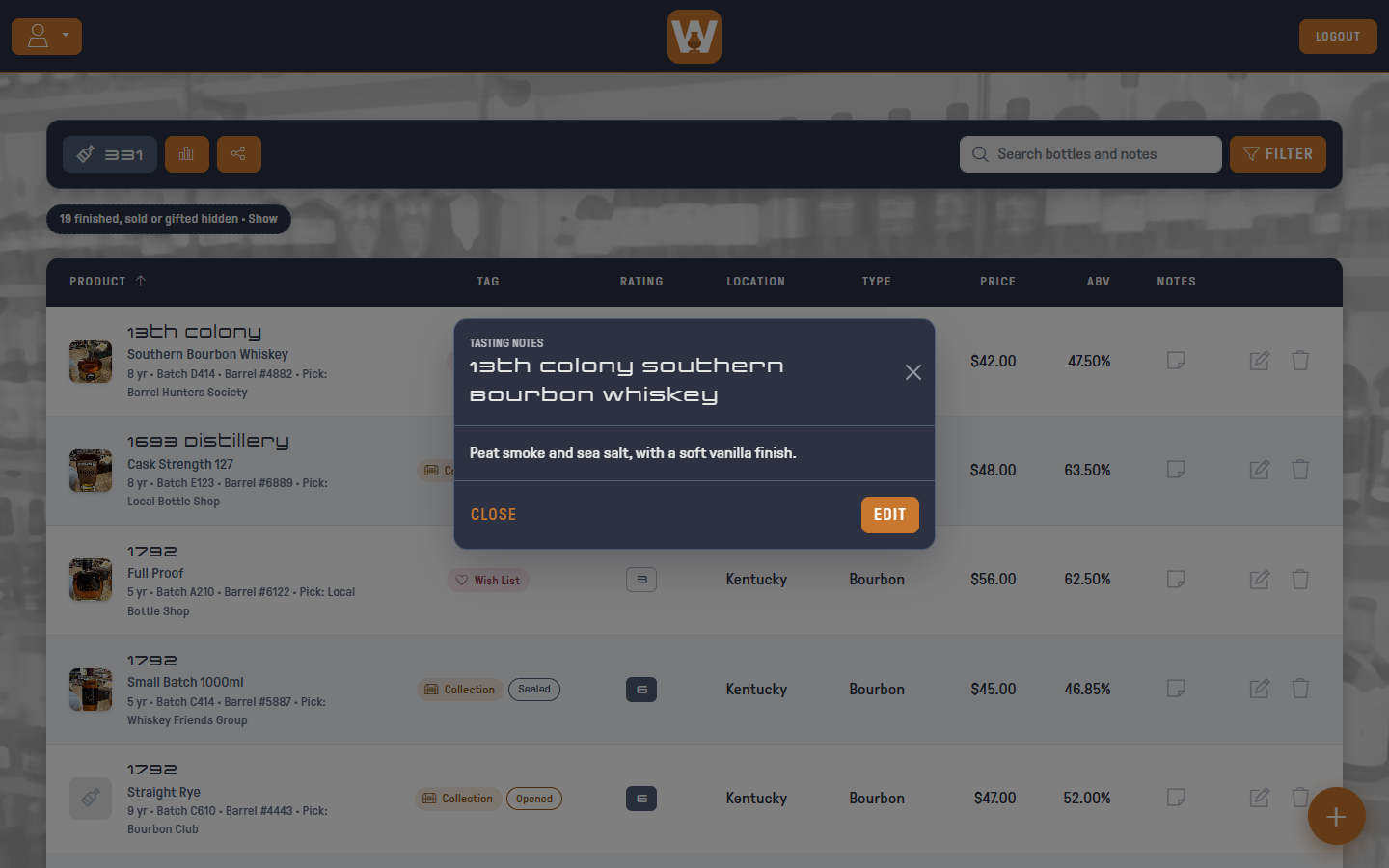
Search matches tasting notes too, so you can find every bottle you described as cherry or oaky.
Notes on Extra bottles appear on your shared Extra list. Notes on Wish List bottles are never shared.
Tasting Notes are your overall take on a bottle. For dated notes, like how it changed after a few months open, add a note to its history.
More Details
The More details section at the bottom of the bottle dialog holds the label details that tell one bottle from another: Age, Batch, Barrel and Store Pick, plus Purchase Date, Bought At and Current Value. Click it to open it. It opens by itself when you edit a bottle that already has any of these filled in.
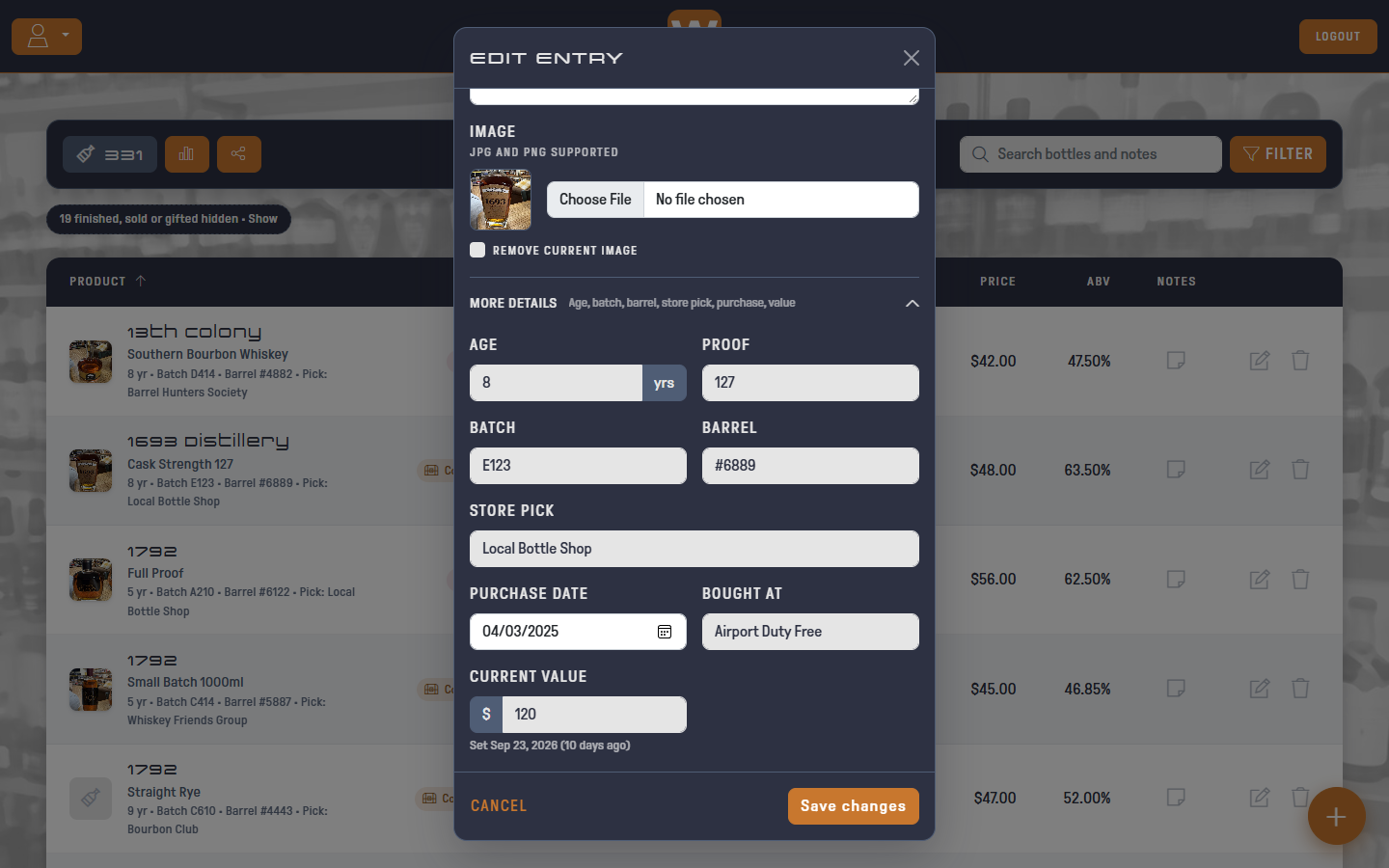
- Proof is shown next to Age. It's always twice the ABV, so typing a proof fills in the ABV and typing an ABV fills in the proof. Only the ABV is saved.
- Bought At is where you bought the bottle, like a store or a friend. Location is where the whiskey is from, like Kentucky or Islay.
- Wish List bottles have Age, Batch, Barrel and Store Pick but no purchase fields or value, since you haven't bought them yet.
Age, batch, barrel and store pick show in a small line under the product name, like 12 yr · Batch C923 · Barrel #4521 · Pick: Bourbon Club. Only the ones you've filled in appear. Search matches batch, barrel and store pick, and you can filter by age and store pick.
Current Value
Enter what one bottle would sell for today, per bottle like Price. WhiskCur remembers when you set it and shows the date under the field, so you know how fresh the number is. The date only changes when the value does.
The bottle view shows the value next to what you paid, like $120.00 (+$72.00 vs paid), and the Est. value tile on the statistics page adds up every bottle you've valued. Values are private and never appear on shared lists.
Photos
A bottle with a photo shows a thumbnail next to its name. Click the thumbnail to open the bottle view, which shows the photo large.
To replace a photo, edit the bottle and choose a new file. To remove it, edit the bottle and check REMOVE CURRENT IMAGE.
The Bottle View
Click a bottle's name or thumbnail to see everything about it in one place: the photo, tag, status and rating, every detail you've filled in, your tasting notes and the bottle's history. On a phone it fills the screen.
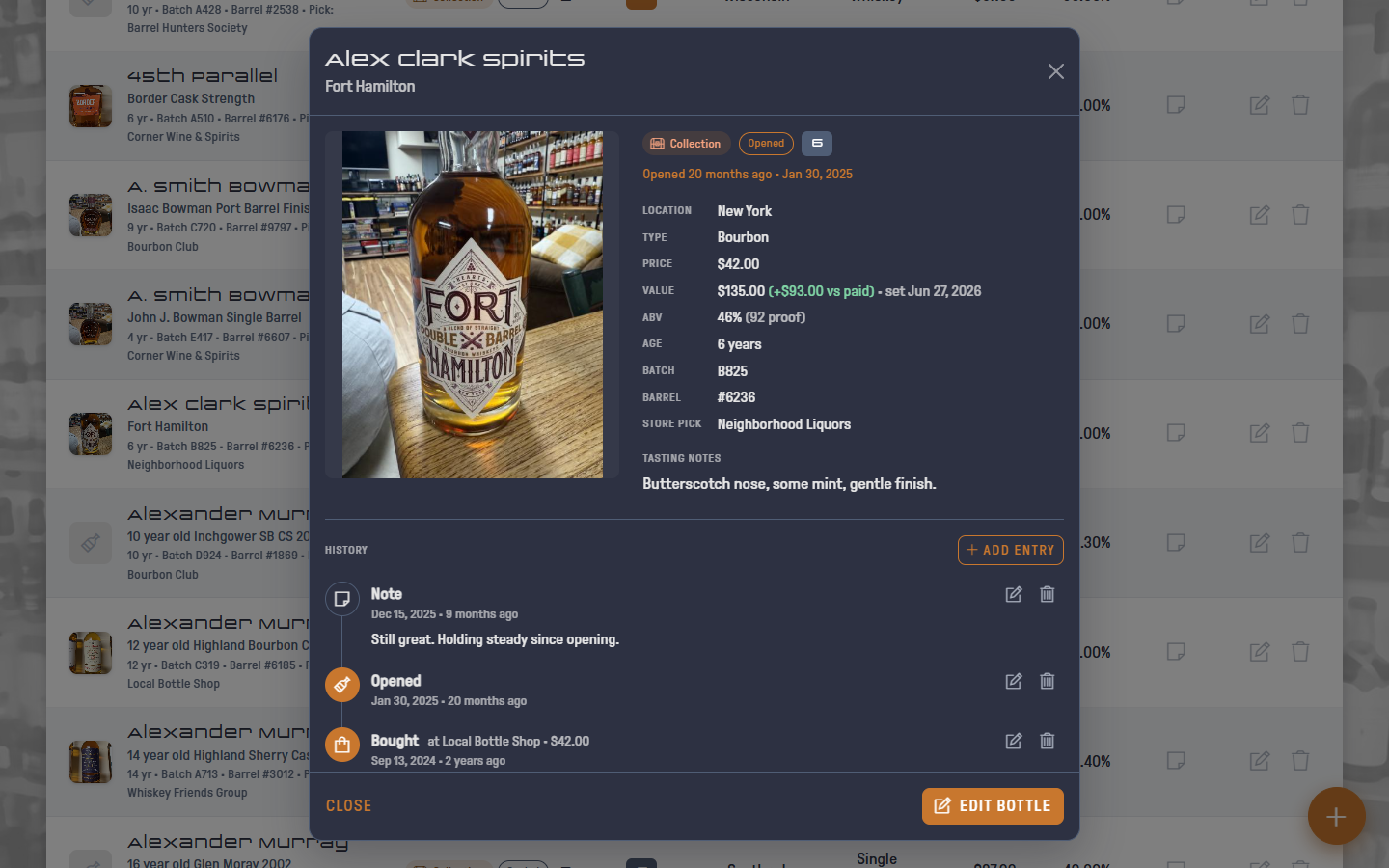
Click EDIT BOTTLE to change anything in the edit dialog.
History
Each bottle keeps a dated timeline of what's happened to it, newest first.
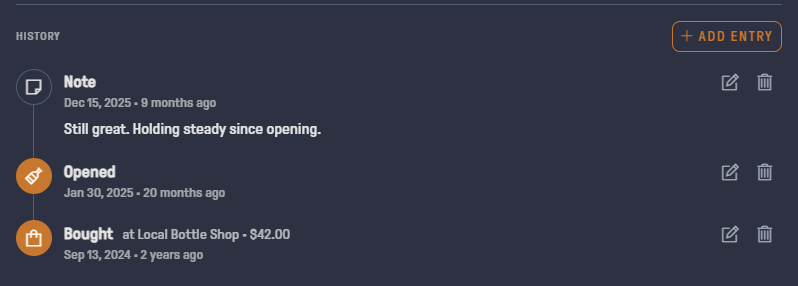
- Status changes are logged for you. Change a bottle from Sealed to Opened and its history gets an Opened entry dated today. Finished, Sold / Traded and Gifted work the same way. If you switch a bottle back to Sealed by mistake, the entry added today is removed.
- Bought comes from the bottle's Purchase Date and Bought At, so it always matches them. Editing one changes the other.
- The bottle view shows how long ago the current status started, like Opened 4 months ago.
To add an entry, click ADD ENTRY. Choose what happened, pick the date and write a note if you like. Use Note for anything else: how a pour tasted months after opening, who you shared it with, or where you saw a Wish List bottle.
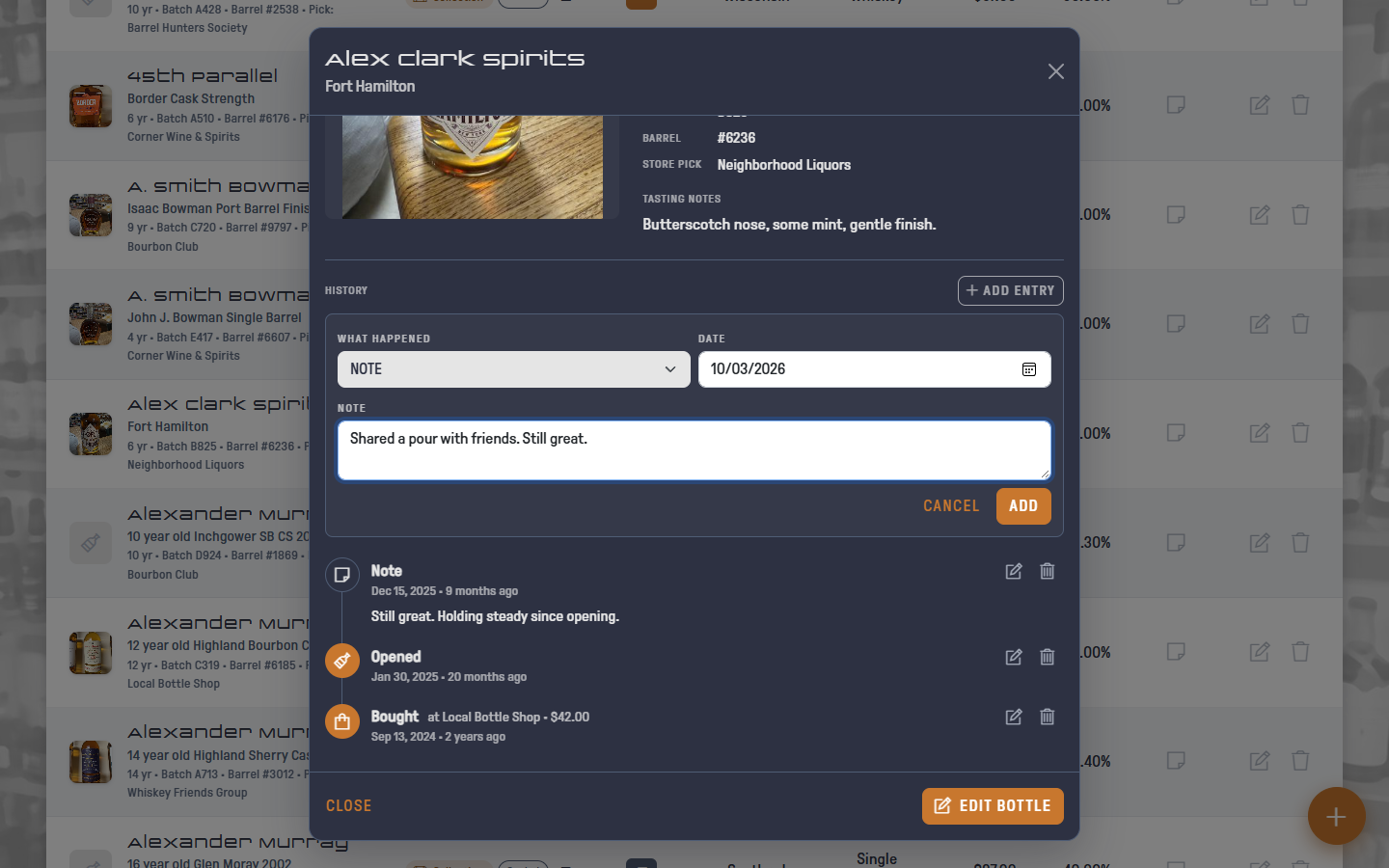
- Dates can be in the past, but not the future. Logged it late? Edit the entry and change its date.
- Adding an Opened, Finished, Sold / Traded or Gifted entry also changes the bottle's status, unless the history already has a later one.
- Click the pencil on an entry to change its date or note. Click the trash twice to delete it.
- Wish List bottles can have notes, but not status or Bought entries.
History is private. It never appears on shared lists.
Editing a Bottle
Click the pencil icon at the end of a row, or EDIT BOTTLE in the bottle view. The dialog opens with the bottle's details filled in, plus a preview of its current photo.
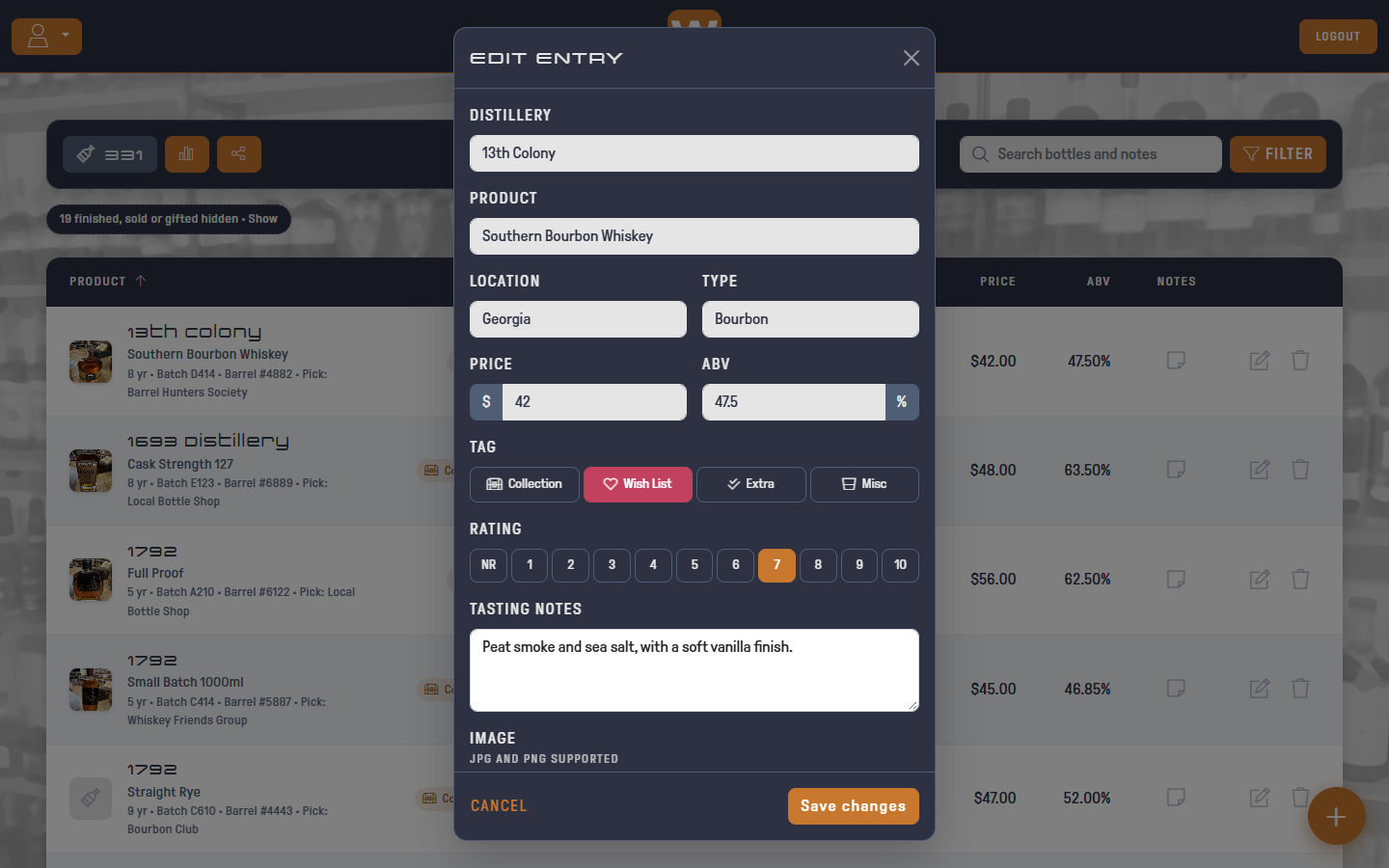
Change anything and click Save changes.
Deleting a Bottle
- Click the trash icon at the end of the row. It turns red and asks SURE?
- Click it again within 5 seconds to delete the bottle.

If you don't click again, it resets after 5 seconds and nothing is deleted.
Deleting a bottle can't be undone.